







How to Schedule Pins on Pinterest: Every Method, Every Limit
How to schedule Pins on Pinterest: the native scheduler's real limits (10 Pins queued, 30 days ahead), step-by-step instructions, and tool comparisons.
Pinterest's built-in scheduler is real, free — and capped at 10 queued Pins, 30 days ahead, one Pin at a time. This guide gives the exact native steps, shows precisely where those limits bite, and lays out the bulk workflow (and the honest tool math) for planning a season ahead instead of a week.
Yes, you can schedule Pins on Pinterest — the platform has a built-in scheduler, and it genuinely auto-publishes. What most guides bury is how small it is: Pinterest's own Business Help Center sets the ceiling at 10 Pins scheduled at once, each up to 30 days in advance, created one at a time, from a business account. For a light publisher, that is plenty. For anyone running a content calendar — especially a seasonal one — it is a wall you will hit in the first month. This guide covers both sides honestly: the native method done right, and the bulk method that replaces it when you outgrow the wall.
The Native Scheduler and Its Real Limits
| Rule | Native scheduler limit | Source |
|---|---|---|
| Account type | Business account required | Pinterest Business Help — Schedule Pins |
| How far ahead | Up to 30 days | Pinterest Business Help — Schedule Pins |
| Pins waiting at once | Up to 10 scheduled Pins | Pinterest Business Help — Schedule Pins |
| Per scheduling pass | One Pin at a time (up to 10 images uploaded at once become 10 separate Pins) | Pinterest Business Help — Schedule Pins |
| Daily posting cap | None documented — the caps above describe the scheduler, not publishing itself | Pinterest help & developer docs |
| Editing after scheduling | Date/time, title, board, description, link — yes. Image or video — no | Pinterest Business Help — Schedule Pins |
One caution when you research this topic: at least one other Pinterest help article still describes a two-week window, contradicting the Schedule Pins article's 30 days. When Pinterest's pages disagree, trust the dedicated Schedule Pins article — it is the one that documents the feature itself.
How to Schedule a Pin Natively, Step by Step
Use a business account
Native scheduling does not exist on personal accounts. Converting is free (Settings → Account management) and also unlocks Pinterest Analytics, which you will want for step 5 of any serious workflow.
Create the Pin completely
Open Create → Create Pin. Upload the image or video (format it first — 1000 × 1500 for standard Pins), then write the title, description, and destination link, and choose the board. Scheduling locks the creative, so finish the Pin as if it were publishing now.
Choose "Publish at a later date"
Instead of publishing immediately, select the later-date option and pick your date and time inside the 30-day window. Double-check the timezone shown — a Pin aimed at a morning audience in another region should be set in your audience's morning, not yours.
Manage the queue deliberately
With only 10 slots, the queue is a ration, not a calendar. Keep the next 10 Pins — no more — scheduled, and top up as slots free. If you find yourself planning Pin #14 this week, you have outgrown the native tool; section 4 is your route.
Outgrown the 10-pin queue?
PinInspect's scheduler holds 50 queued pins on the free plan — and builds the pins themselves from your URLs and keywords.
Where the Native Limits Bite
- Seasonal content. Pinterest's own seasonal guidance is to publish 45–90 days ahead of the moment so Pins are distributed before demand peaks. A 30-day native window cannot execute a 45–90-day strategy — the math simply does not close. Seasonal publishers either schedule in a tool or publish early manually and lose the timing control.
- Weekly batching. Most productive creators work in one weekly session. At even a modest 3 Pins a day, a week of content is 21 Pins — more than double the native queue. The queue forces daily top-ups, which is the opposite of batching.
- One-at-a-time creation. Every scheduled Pin is a full pass through the composer. There is no native way to turn ten finished images with titles into ten scheduled Pins in one action.
- Creative lock-in. A typo in the title is editable; the wrong image is not. Native scheduling punishes the most common mistake — the creative error — with a delete-and-redo.
The Bulk Workflow: Planning a Month (or Season) Ahead
A scheduler tool inverts the constraint: the tool holds your Pins and sends each one to Pinterest when its time comes, so the queue size is the tool's plan quota, not Pinterest's 10. In PinInspect the workflow is built around review, because bulk without review is how off-brand pins happen:
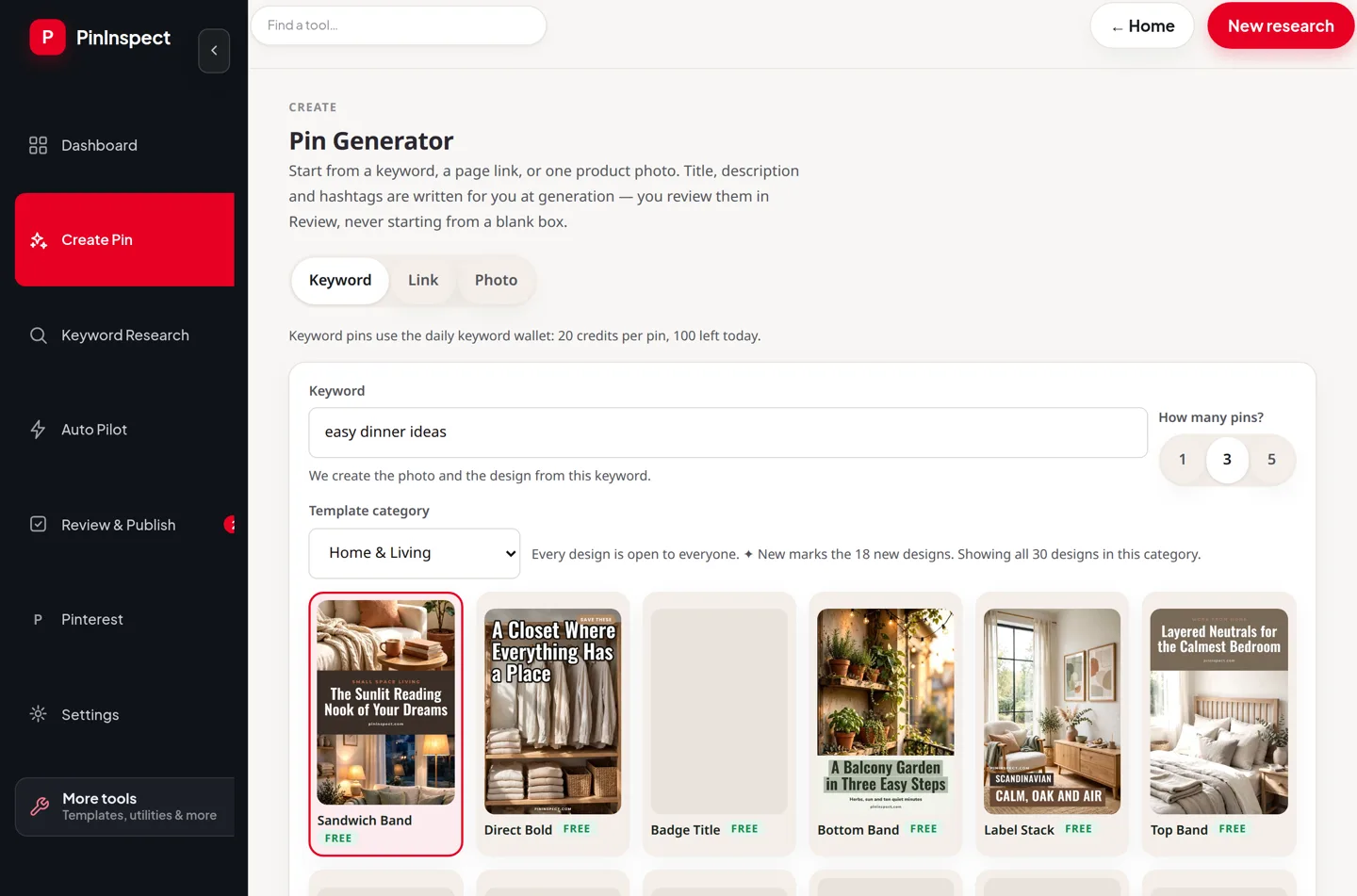
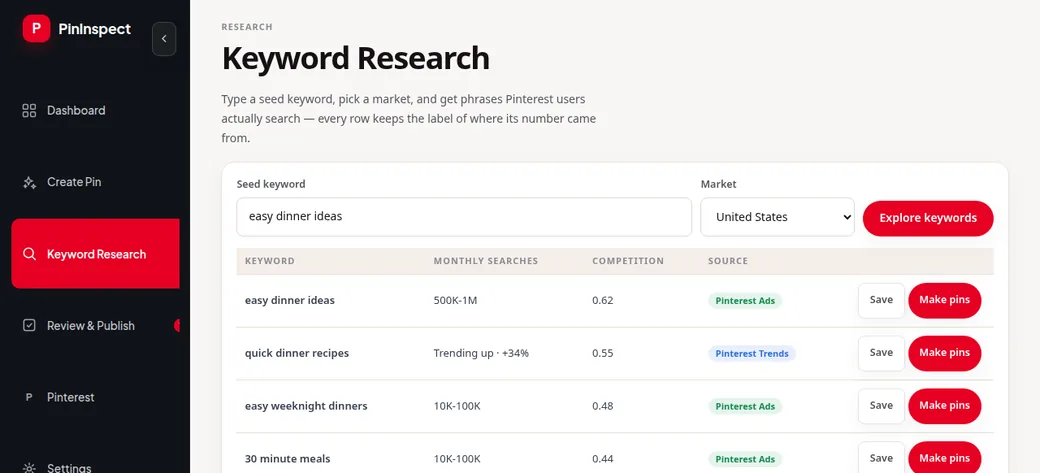
- Create in batches. Generate Pins from your article or product URLs, from keywords, or from product photos — a working session produces a week or a month of drafts at once.
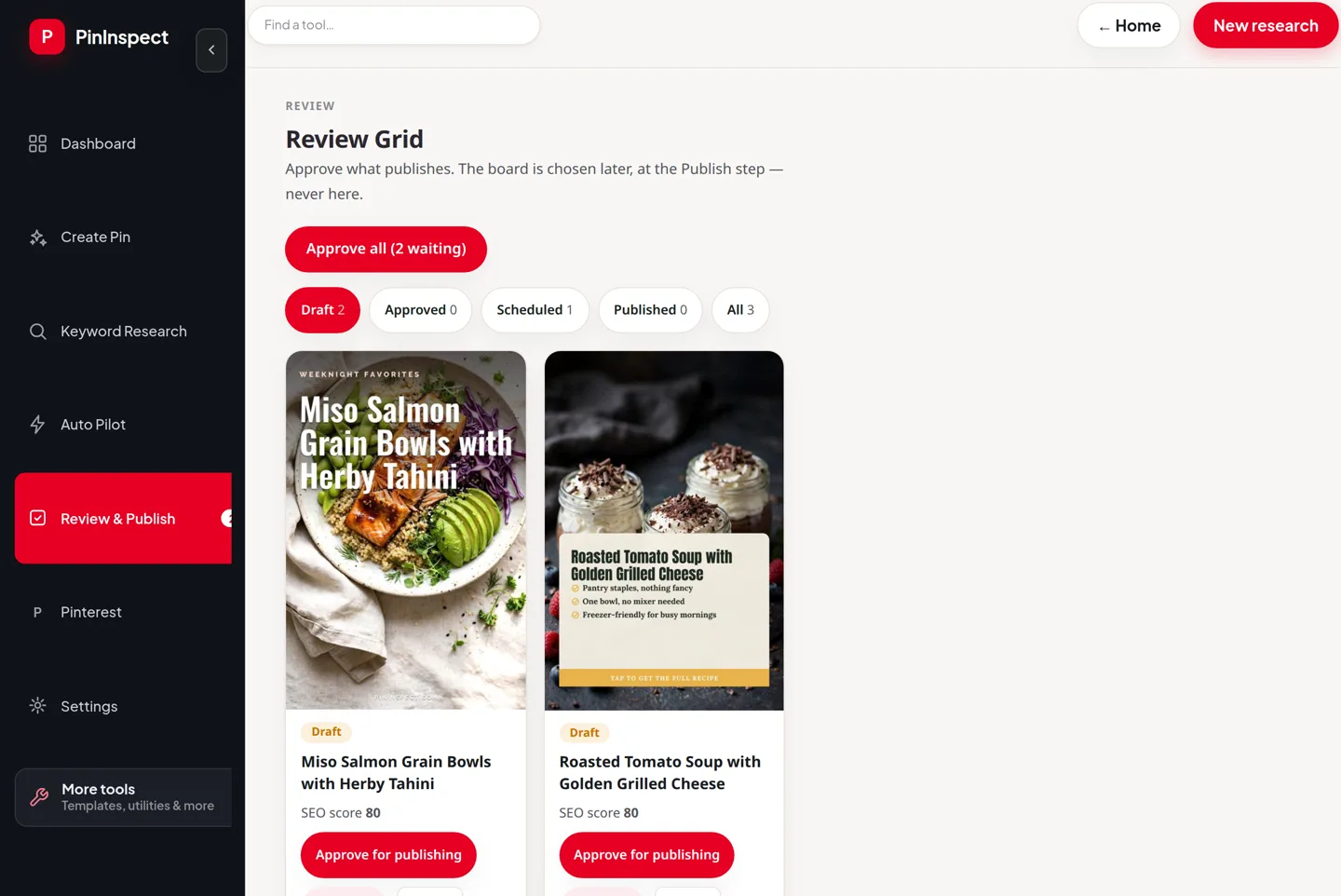
- Approve in the Review grid. Drafts wait for your eyes. Fix titles, swap images, adjust boards — then approve. Only approved Pins move forward, so nothing publishes unreviewed.
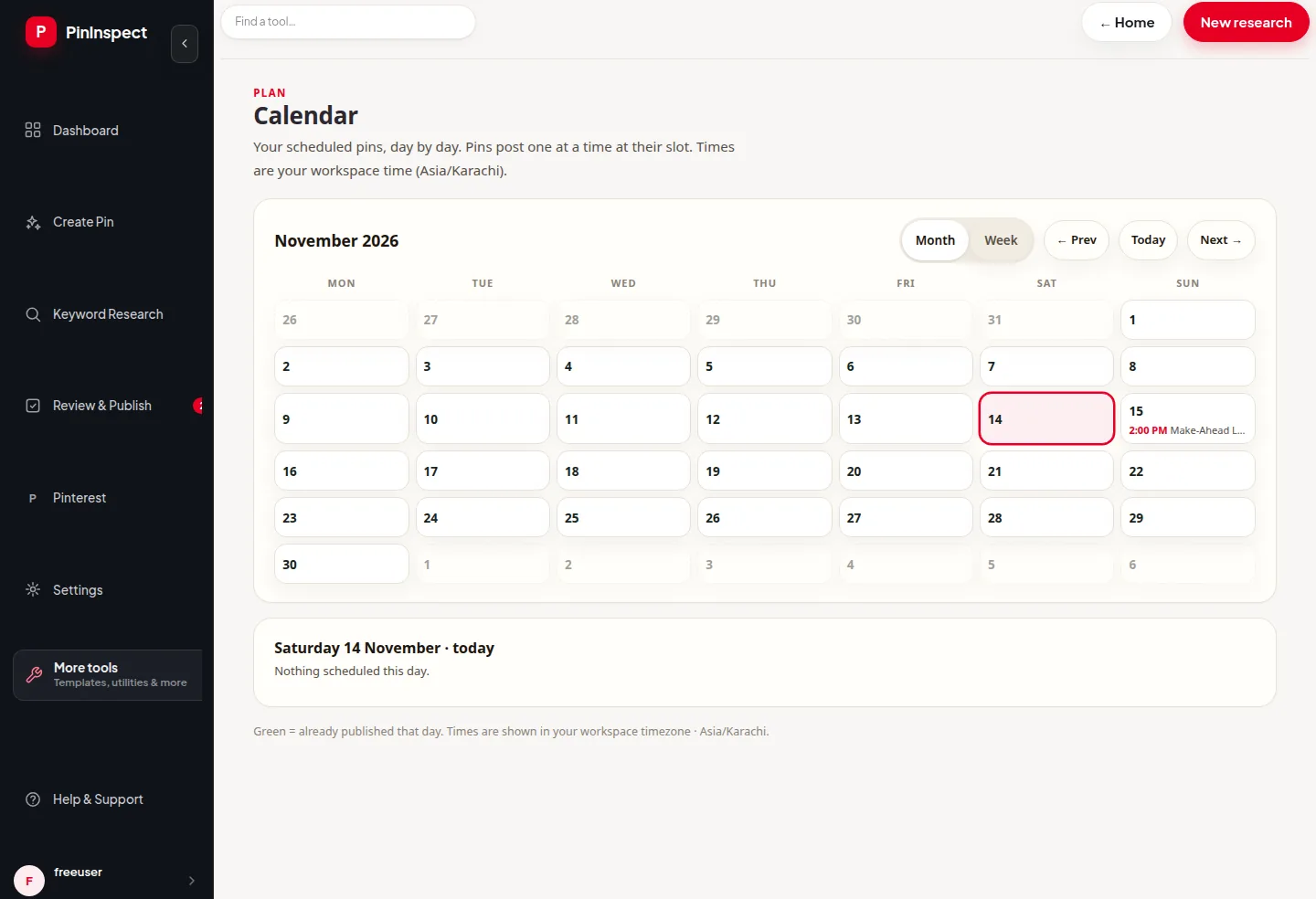
- The Queue and Scheduler take over. Approved Pins enter the Queue, and the Scheduler assigns them publishing slots across your publishing window automatically — you set the cadence once instead of dating every Pin by hand.
- Measure and refill. As Pins publish, check their engagement rate monthly and refill the queue with fresh variants of what performs — the compounding loop scheduling exists to enable.
Schedule the season, not the week. With a queue that can hold a season, publish seasonal Pins the full 45–90 days ahead that Pinterest recommends, staggered so the cluster builds — anchors first, long-tail variants behind them, execution-intent Pins (easy, printable, last-minute) nearest the day.
Native vs Scheduler Tools: The Honest Comparison
| Pinterest native | PinInspect Scheduler | General scheduler tools | |
|---|---|---|---|
| Queue size | 10 Pins | 50 (Free) · 1,000 (Pro) · 5,000 (Agency) · Unlimited (Enterprise) | Varies by plan — check each vendor's current pricing page |
| Horizon | 30 days | Plan a full season ahead | Typically beyond 30 days |
| Bulk creation | No — one Pin per pass | Yes — generate from URLs, keywords, or photos, approve in bulk | Usually upload-based; creation is on you |
| Review before publish | The composer itself | Review grid — nothing publishes unapproved | Varies |
| Cost | Free | Free plan includes 50 scheduled pins; paid plans from $12/mo | Mostly paid for Pinterest at useful volumes |
| Best for | Light, occasional scheduling | Pinterest-first publishers who also want the pins created | Multi-platform calendars where Pinterest is one channel of many |
The honest summary: if you schedule a handful of Pins a month, the native tool is enough and it is free — use it. The moment you batch content, plan seasonally, or publish daily, the queue math forces a tool; then the real choice is between a generalist scheduler (Pinterest as one channel among many) and a Pinterest-first one that also creates and optimizes the Pins (which is the bet PinInspect makes). Prices and quotas in the PinInspect column are from our own plan table; competitor quotas change often enough that we will not print figures we cannot verify today — check their pricing pages.
Scheduling Strategy That Compounds
- Consistency beats bursts. A steady cadence of fresh Pins gives Pinterest's distribution system new material to classify and test continuously. Ten Pins in one day followed by silence reads as a campaign; two a day for a month reads as a publisher.
- Fresh Pins, not re-pins. Schedule new creative for old URLs — new image, new title angle, same destination. Our fresh pins guide covers the method.
- Let your own analytics set the clock. "Best time to post" tables are averages of other people's audiences. Your Pinterest Analytics shows when your audience is active; after a month of scheduled publishing, your own engagement rate by time slot is the only timing data worth following.
- Boards before volume. A scheduled Pin on the wrong board wastes the slot. Build the board structure first — one board per keyword cluster — then let the queue fill it.
Troubleshooting Scheduled Pins
- The later-date option is missing. You are on a personal account. Convert to a business account (free) and it appears.
- The date you want is greyed out. It is beyond 30 days — the native ceiling. Either wait, publish manually on the day, or hold the Pin in a scheduler tool.
- The queue says you are at the limit. Ten Pins are already scheduled. Publish or delete one to free a slot.
- The image is wrong and edit will not let you change it. Correct — natively, creative is locked at scheduling. Delete the scheduled Pin and create it again with the right image.
- The Pin published at the wrong hour. Check the timezone the schedule was set in versus your audience's. Set times in the audience's local time, especially when scheduling across regions.
Frequently Asked Questions
Schedule Like a Publisher, Not a Slot Machine
Native for a handful of Pins; a real queue for a calendar. Either way — steady, fresh, and measured.