







How to Set Up a Pinterest Business Account, Step by Step
How to set up a Pinterest business account, step by step: create one or convert a personal account, conversion rules, and the first-hour checklist.
A business account is free, takes minutes, and unlocks Pinterest Analytics, a claimed website and ads eligibility. Here are both routes — new account and conversion — exactly as Pinterest documents them, plus the two blockers that stop people mid-flow.
Every serious Pinterest workflow starts here, because a personal account is deliberately limited: no analytics, no way to claim your website, no ads eligibility. A business account removes those limits for free, and it is also the required foundation for the rest of this site's guides — you cannot follow an analytics workflow on an account that has no analytics. This guide gives both setup routes exactly as Pinterest documents them today, the rules that trip people up mid-flow, and the checklist to run in your first hour afterward.
Why a Business Account (and Why It's Free)
Pinterest gives business accounts four things personal accounts never get:
- Pinterest Analytics — impressions, saves, pin clicks, outbound clicks and audience insights for everything you publish.
- A business profile — profile fields built for brands and creators rather than individuals.
- A claimed website — connect your site so pins from it carry your attribution and feed your analytics.
- Ads eligibility — the option to promote pins later; choosing a business account does not commit you to spending anything.
It costs nothing because Pinterest earns from advertisers. In exchange, business accounts operate under Pinterest's Business Terms of Service, which you accept during setup.
Option 1: Create a New Pinterest Business Account
Pinterest's current help documentation is specific on two points: creating a new business account is a desktop flow at this time, and the email you use must not already be in use on an existing Pinterest account — if your email is taken by a personal account, convert that account instead (Option 2).
- Go to pinterest.com in a desktop browser and choose Sign up.
- Select Create a business account.
- Enter your email address, a password, and your age, then choose Create account.
- Build your profile — name, photo and the basics searchers will see.
- Describe your business — the category and details Pinterest asks for.
- Choose whether you are interested in running ads (either answer is fine; it is not a commitment).
- Pick where you want to start, and your account is live.
Option 2: Convert Your Personal Account
Converting keeps everything: Pinterest confirms your pins and followers remain the same. You are adding business features to the account you already built, not starting over.
On desktop
- Log in to your personal account.
- Open Settings (from the menu at the bottom-left of the screen).
- Choose Account management.
- Under Account changes, choose Convert to a business account, then Convert account, then confirm.
- Build your profile, then describe your business.
- Choose whether you want to run ads, then pick where to start.
In the app
- Log in and tap your profile picture.
- Tap the settings (nut) icon.
- Choose Account management, then Convert to a business account.
- Follow the same profile and business-description steps.
The Rules That Trip People Up
- Business accounts are public. If your personal account is set to private, switch it to public before converting — Pinterest will block the conversion until you do.
- Linked accounts must be unlinked first. A personal account linked to another account cannot convert until the link is removed.
- Linking is gone. Pinterest no longer allows linking a personal account to a business account, so plan on separate logins if you keep both.
- Reversible. You can switch back to a personal account at any time from account management — converting is not a one-way door.
Your First-Hour Setup Checklist
- Finish the profile properly: a recognizable name and username (work your main keyword in naturally if it fits), a clear photo or logo, and a bio that says what you publish and who it helps.
- Claim your website from Settings, under Claim — claimed sites get attribution on pins saved from them and feed your site's pins into your analytics.
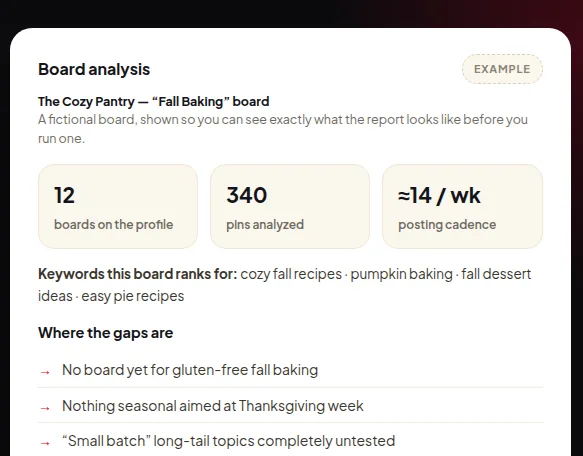
- Create your first boards with search in mind. Board names are a ranking field; use the board name ideas guide or the board name generator instead of naming boards like folders.
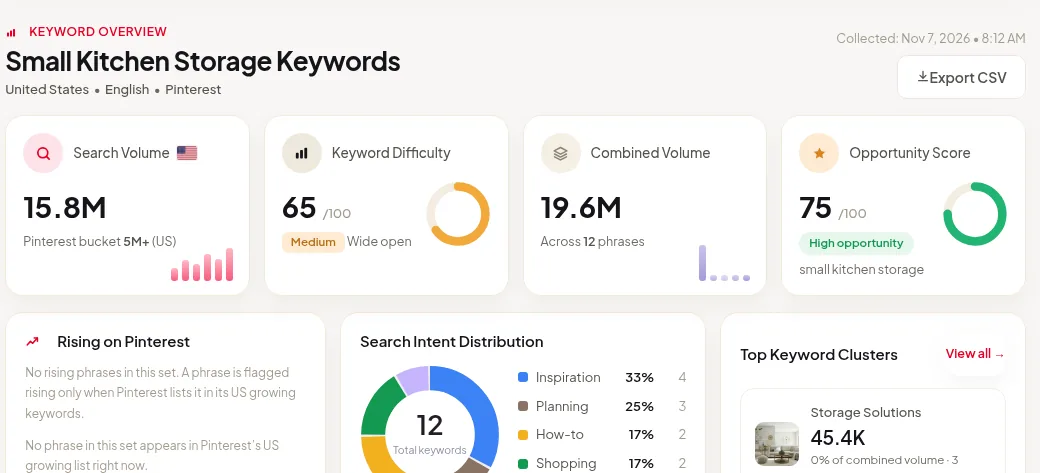
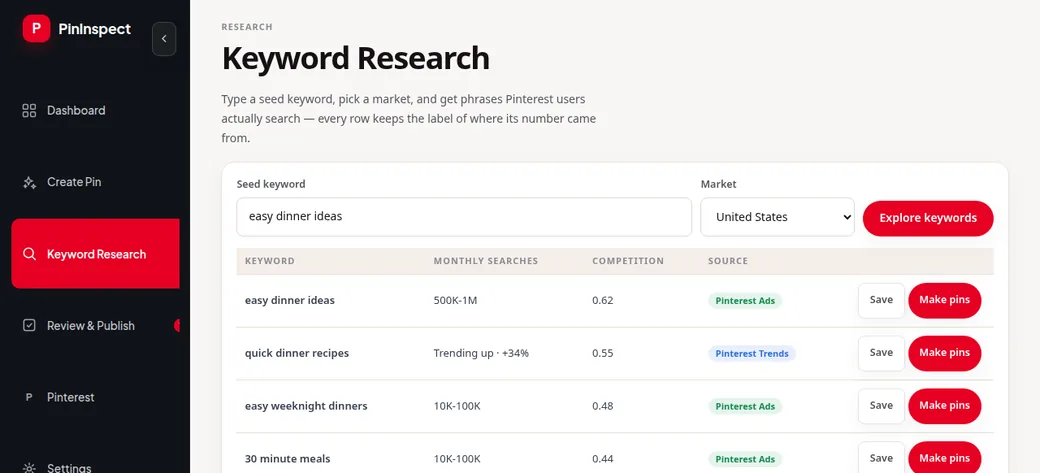
- Research before you pin. Run your topics through the keyword tool so your first pins target phrases people actually search.
- Open Analytics once so you know where it lives — then read the analytics explainer before your first month of data lands.
That is the whole setup: ten minutes of forms, then the compounding starts. If you are building the account as part of a broader launch, pair this with Pinterest marketing for beginners and the profile optimization guide.
Frequently Asked Questions
Your Account Is Live — Now Make It Searchable
A business account with keyword-led boards and researched pins outperforms a year of casual posting. Start with the phrases your buyers actually search.